MAIN PORTAL
How Can We Help?
Common help terms : new user setup, adding images to community interface, using BLOC(s)
The OPS Network Learning and Resource Center contains more than 40 easy to follow training videos, numerous quick tips, informative instructional lessons and valuable network documentation. Agency administrators and users can utilize these resources to educate themselves on how to navigate OPS, complete the initial setup of their agency network and manage the network long-term.
New Agency Setup? Users can get started by following the step-by-step guide for setting up a new agency OPS Network.
Click on the red number located on each step to access the corresponding learning block, then proceed to the next block once complete.
Locate Your Agency & User activation code.
WELCOME VIDEOAn Introduction to OPS
Step #1Network Familiarization
Step #2USER SIGN-UP
Step #3Command Center
Step #4COMMUNITY INTERFACE
STEP #5COMPONENTS & EXTENSIONS
STEP #6Communications
advanced web editor toolscommunity interface editing tools.
QUICK SETUP GUIDEDOWNLOAD THE OPS QUICK SETUP GUIDE PDF HERE
BASIC AGENCY USE POLICYDOWNLOAD THE OPS BASIC AGENCY USE POLICY
SAMPLE POLICY TEMPLATEDOWNLOAD THE TEMPLATE
OPS FUSION PROJECT REGIONDOWNLOAD THE Q & A BROCHURE
IMAGE EDITING TEMPLATESIMAGE TEMPLATES FOR EDITING PROGRAMS
RESET PASSWORD GUIDEQUICK GUIDE TO ASSIST WITH RESETTING A LOST PASSWORD
OPS PLUS™ InformationSimsi RTM Intelligence
OPS LENS™ InformationLaw Enforcement Notification Sharing
OPS POLICY & FORMS CENTERCentral point for ops policies and guides
ACTIVATING NOTIFICATIONSACTIVATING CHROME NOTIFICATIONS
ACTIVATING NOTIFICATIONSACTIVATING MS EDGE NOTIFICATIONS
NSNR™ InformationRESOURCES FOR THE NATIONAL SPECIAL NEEDS REGISTRY
NPS-AID™ InformationRESOURCES FOR THE NATIONAL PUBLIC SAFETY ALLIANCE FOR INDIVIDUALS WITH DISABILIES.
SECURITY IMAGE REQUIREMENTS
PROFILE IMAGE WAIVERREQUEST AN OPS PROFILE IMAGE WAIVER
SUPPORTCONTACT TECH SUPPORT
VIDEO LEARNING CENTEREXTENSIVE LIBRARY OF OPS VIDEO TUTORIAL
FAQGeneral FAQ
ADA COMPLIANCE INFORMATIONADA COMPLIANCE CHECKER & INFORMATION
WCAG 2.1 AA Compliance CheckClick for Details
WCAG 2.1 AA PDF BuilderClick for Details
Network LayoutCLICK TO OPEN AND VIEW
Network Org. ChartCLICK TO OPEN AND VIEW
NJ OAG IA COMPLIANCE GUIDECLICK TO OPEN AND VIEW
ADA WEB COMPLIANCE AND ACCESSIBILITY CHECKER
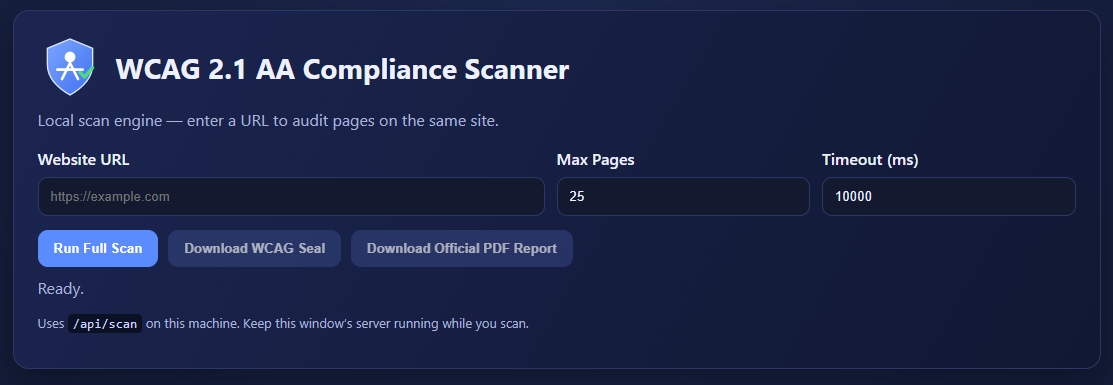
WCAG 2.1 AA Compliance Scan and Reports
OPS provides detailed reports upon request using a WCAG 2.1 AA scanning tool. This tool evaluates your OPS Community Interface for potential accessibility issues that could result in ADA compliance violations. The resulting report outlines your site’s current compliance status, identifies any issues, and provides clear guidance on how to resolve them.
OPS can also scan websites beyond the OPS Community Interface. To request an ADA scan and report for your platform or any external website, please contact your agency’s OPS CMA, who can submit the request on your behalf.
Please note that many online “ADA scanners” are marketed as compliance solutions but are primarily designed to promote services rather than deliver accurate, actionable results. These tools should be used with caution.
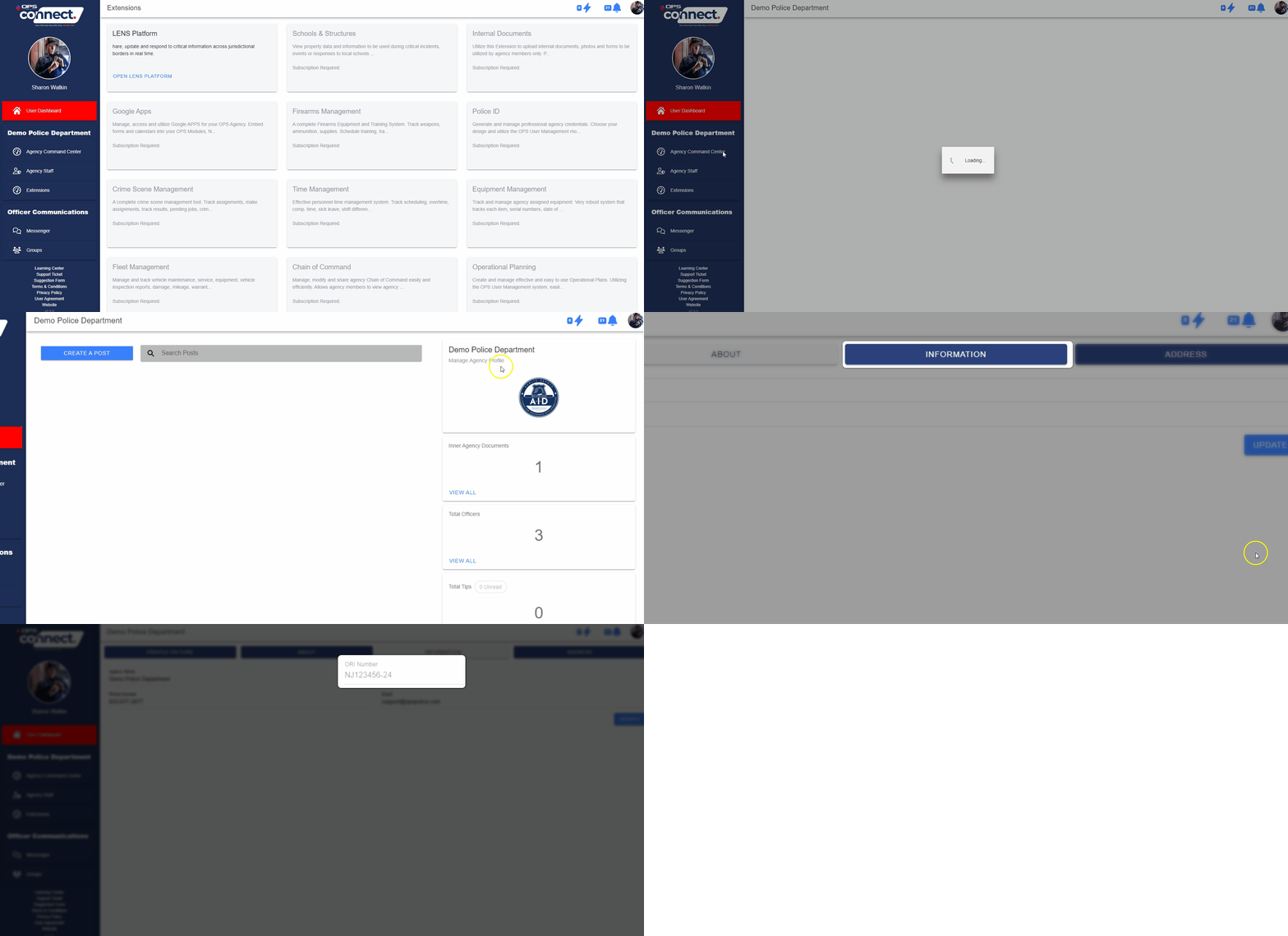
AGENCY/USER ACTIVATION CODE INFORMATION
- Administrators can locate their agency’s user activation code by clicking on the Command Center link on the sidebar once logged into OPS Connect. (See Animation Below)
- On the top of the Command Center sidebar, under the agency name, the user will see a link called “Manage Agency Profile”. (See Animation Below)
- When clicked on the user will see a button labeled “Information”. This button will contain the main information about the agency, to include the agency’s active “activation” code number. (See Animation Below)
- This number is the code users will need when creating an OPS Connect account and be accepted into the appropriate agency. (See Animation Below)
OPS NETWORK HELP CENTER NOTIFICATIONS
1. If your OPS Connect is displaying red notification bell and lightening icons on desktop, you will need to activate notifications in your browser for OPS. Easy to follow graphic instructions have been added to the center column on the main help center screen to assist with completing this activation.
End notifications
NEW AGENCY SETUP – “BEST PRACTICES” HELP GUIDE
View the Best Practices Step by Step Video ▶️ HERE
The below guidance is provided as “best practice” to assist agencies with a smooth OPS Network implementation and ongoing upkeep. By following these simple suggestions, each agency should complete an OPS Network implementation within 2 to 6 weeks.
*Note* A Fusion Project OPS partnership will have diverse implementation time periods based on the size of the agency and project details.
1. ASSIGN A MANAGER:
- Assign an agency member, or members, to handle the rollout and setup of the initial network. Request the assigned personnel to spend a day or so looking through the OPS Network Learning and Resource Center, familiarizing themselves with the many aspect of OPS. (NOTE: Select a member(s) that is goal oriented and provide them with the needed time and resources to accomplish the task with minimal interruption.)
2. NOTIFY I.T.:
- Provide the agency’s IT department and staff with advanced notice that the agency will be implementing the OPS Network so that they can be aware of any IT needs and be prepared to assist. (i.e: white labeling OPS email extensions, etc..)
3. BE TRANSPARENT:
- Advise all agency staff that the network is coming and that the person(s) assigned to set up the network have the authority to make requests and will require cooperation from the staff. Keep in mind that new tools, technology, procedures, etc.., no matter how beneficial, always create some level of anxiety with some staff members. Being transparent and direct often helps prepare agency staff so they can better understand the network and its benefits.
4. PROVIDE GUIDANCE
- Download the provided agency policy template (modify as needed) and issue the OPS Network policy agency-wide. Ensure that the policy clearly states the requirements and goals of the agency’s use of the OPS Network. This will assist the agency member(s) charged with setting up and maintaining the network as well as provide guidance to agency staff.
5. SIGN UP USERS:
- Start with getting OPS Network user permission levels established and agency users signed up. Think about starting with command staff members, supervisors, line officers, support staff, etc… in controlled blocks.
6. SHARE APPROPRIATE RESOURCES:
- If your agency will be utilizing the Community Interface Module, make sure those who will be assisting with setting up and launching the Community Interface have access to the OPS Learning and Resource Center.
7. SET DEADLINES:
- While setting up your network, set deadlines to ensure the process does not stall and stays on track.
8. HIGHLITE THE BENEFITS:
- Encourage users to explore the network. Share how certain tools can benefit various aspects of the organization and community.
9. USE THE NETWORK:
- Begin utilizing the network. Example: Load critical documents and templates up to the Command Center so agency members can access them 24/7, begin making all agency-wide and critical announcements via the agency’s OPS Command Center, etc..
10. NOTIFY THE COMMUNITY:
- If the agency is utilizing the Community Interface Module, or any of the Community Modules, notify the community via press release, social media, etc…so they can begin engaging the agency via OPS. Your agency is taking a huge step in community policing and it should be a proud moment to be shared with the community.
– Following these “best practices”, and the steps in the OPS Learning and Resource Center’s setup process, will help ensure your agency’s OPS Network will be up and running quickly and with minimal effort.
– Reference the OPS Learning and Resource Center often. While most tools in OPS can be used with no training or technical knowledge, nearly every aspect of the OPS Network is covered in the center for those times when guidance or assistance is needed.
– Contact OPS Technical Support or your OPS Regional Representative when needed.